
Invite a family
invite code join code parent signup add a family send an inviteAdd the kid, then share their invite code. The parent enters it when they sign up in the HootCare app.
Transcript
Here's how to invite a family to HootCare, from adding a kid to the moment they join.
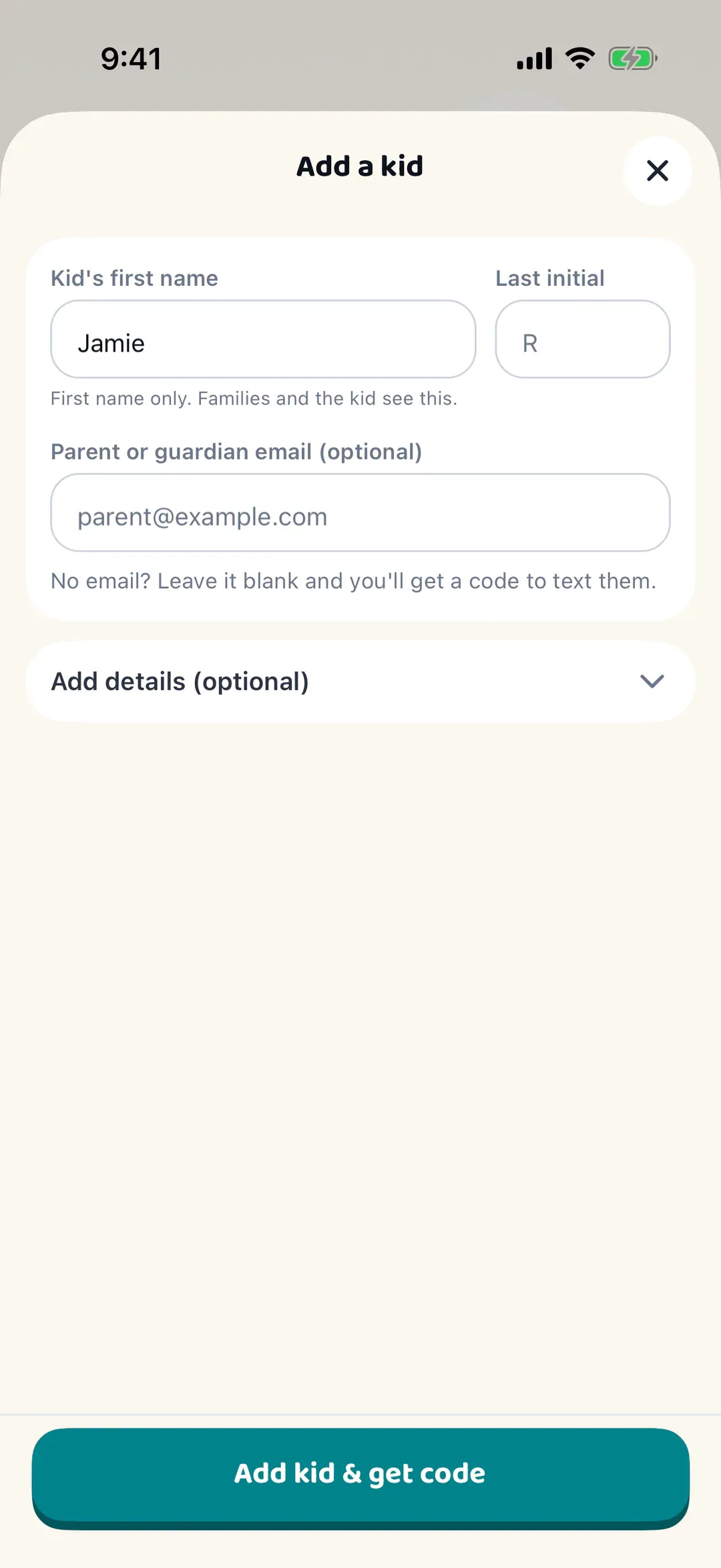
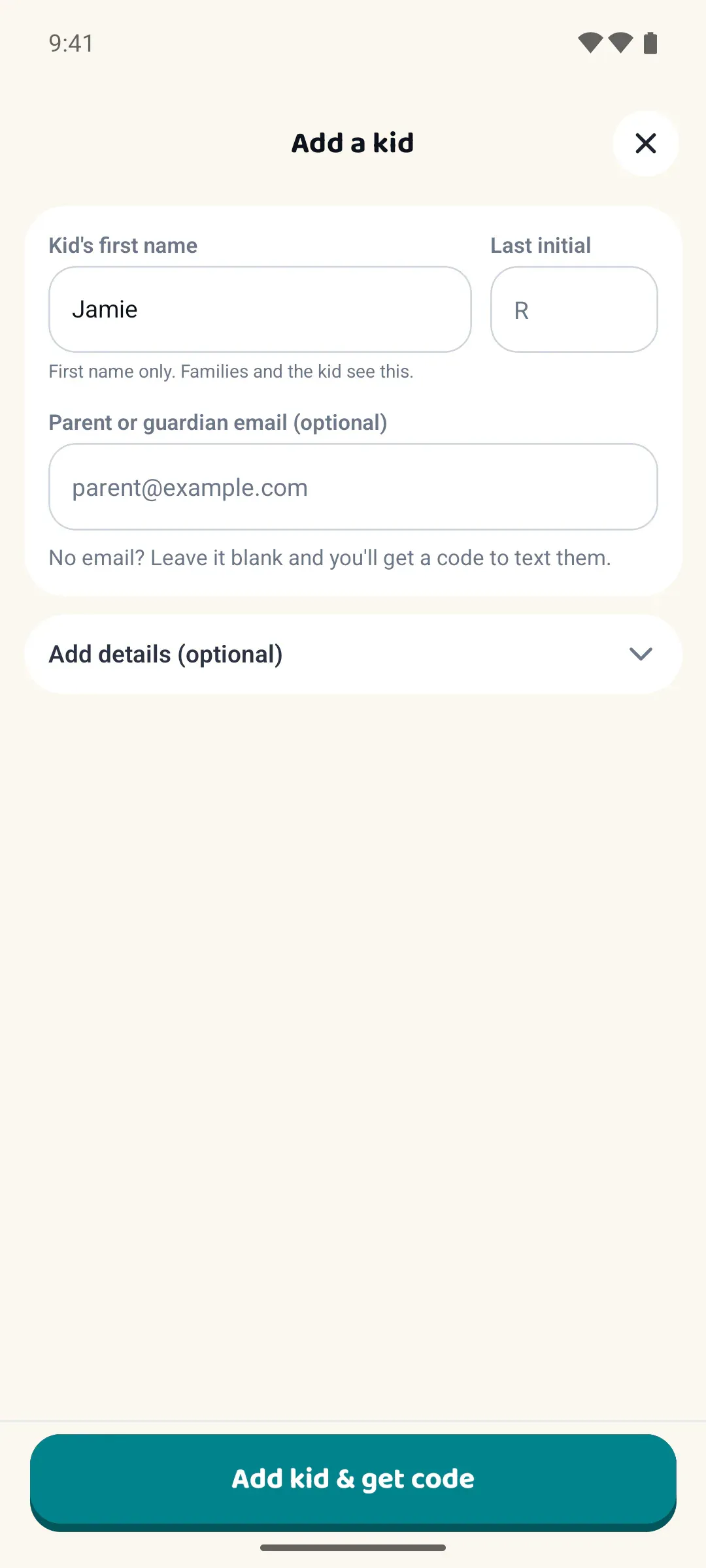
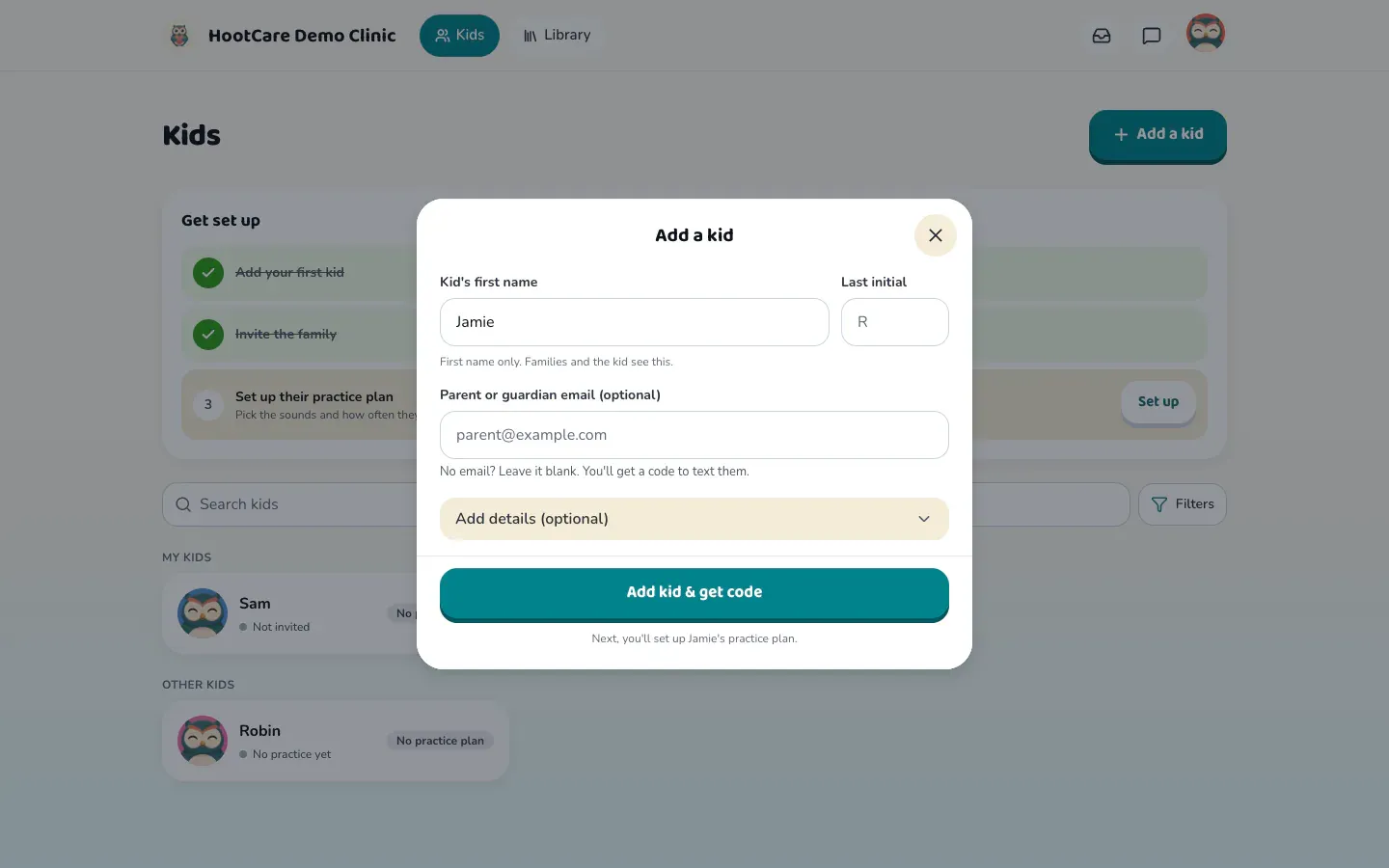
Start on the Kids tab, and tap the round add button at the bottom right. A first name is all you need to get going. The rest can wait. Then tap Add kid & get code.
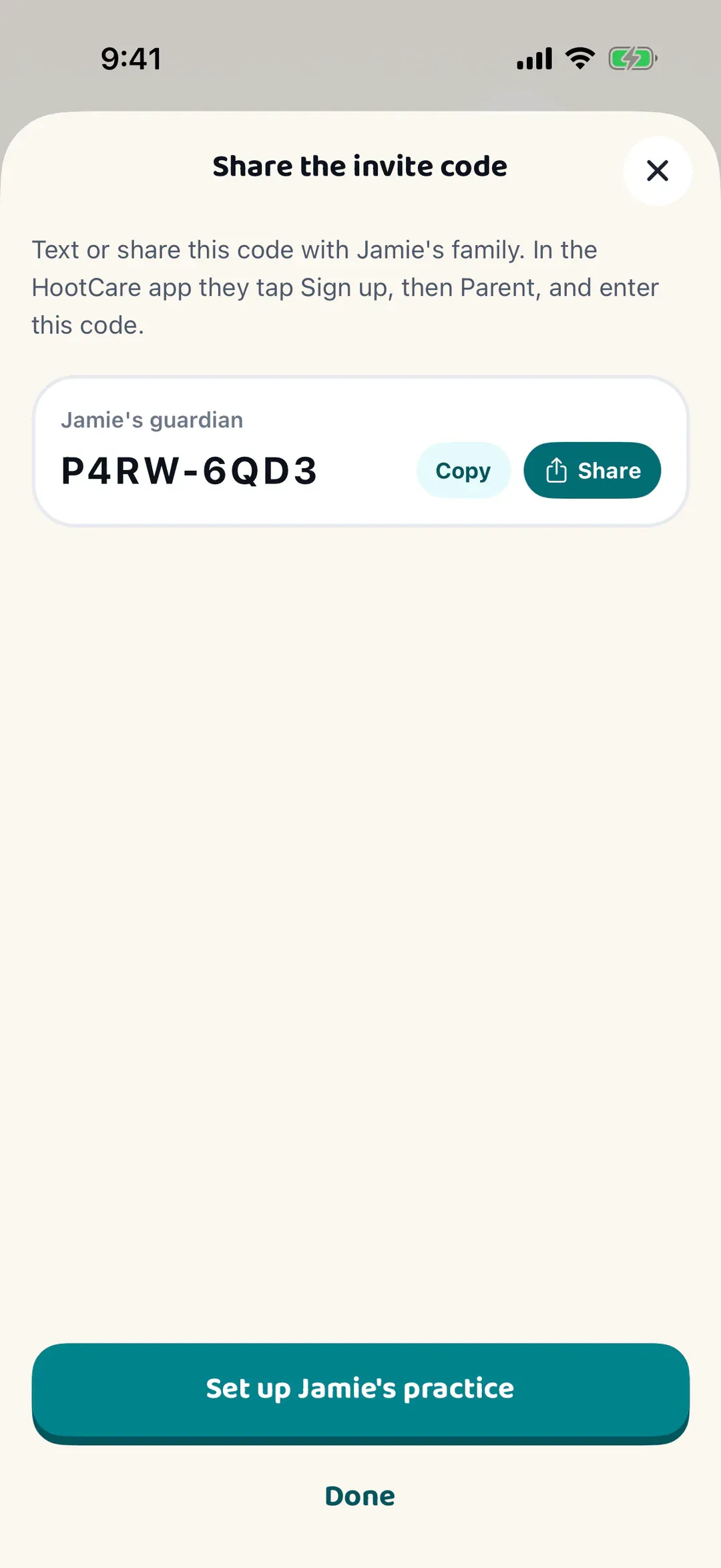
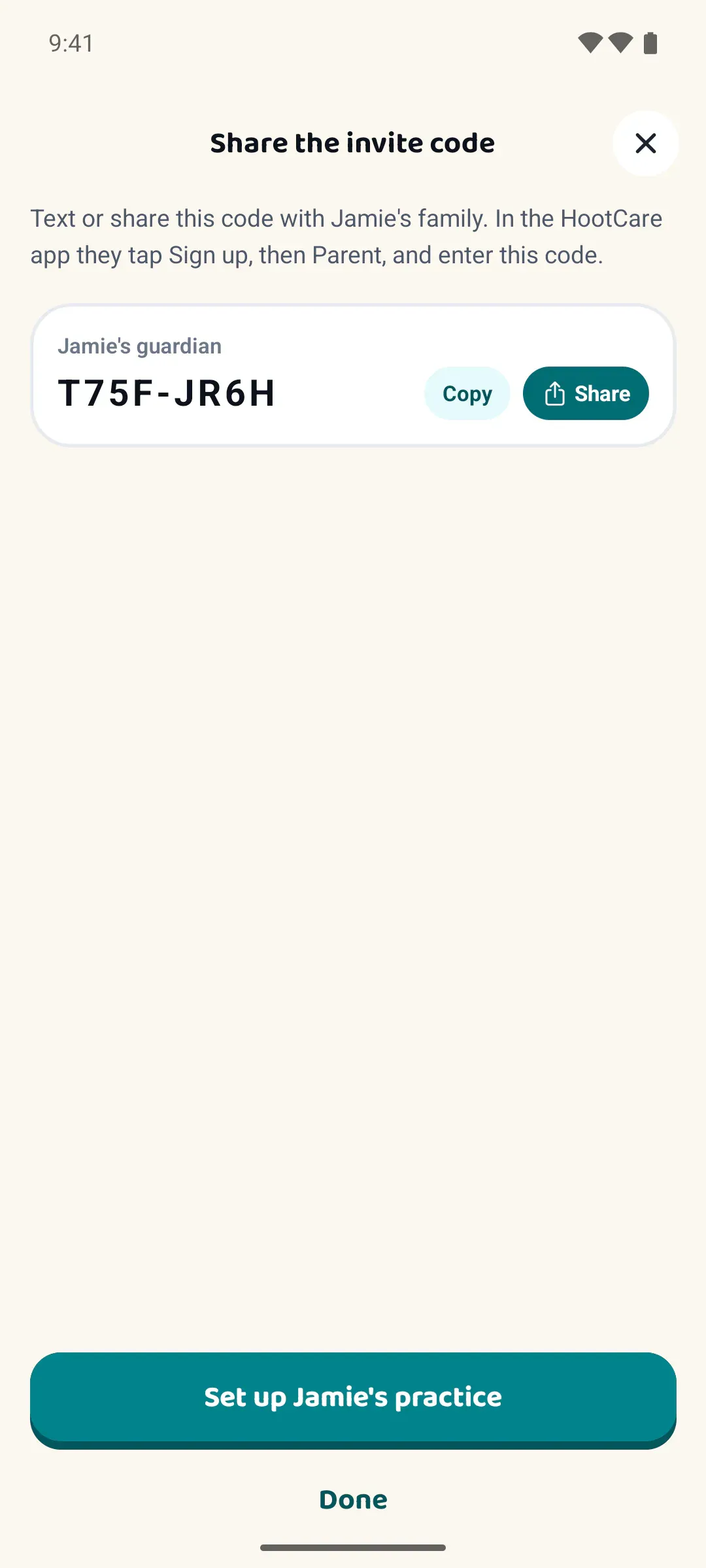
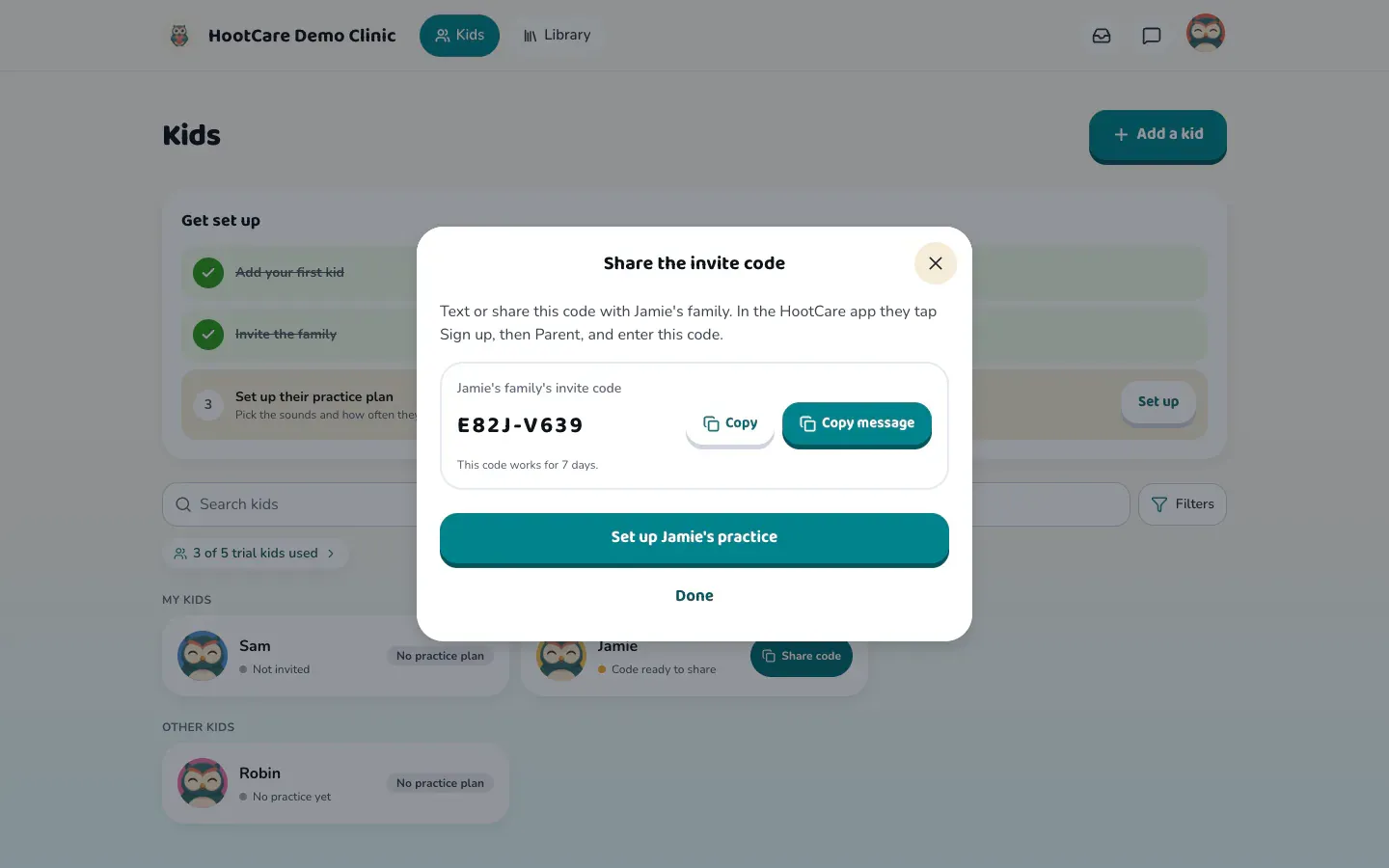
HootCare makes an invite code for the family. Copy the code and paste it into a text yourself, or tap Share to send it from your phone. The code works for seven days. Tap Done. The kid's row now has a Share code button, so the code is always easy to find.
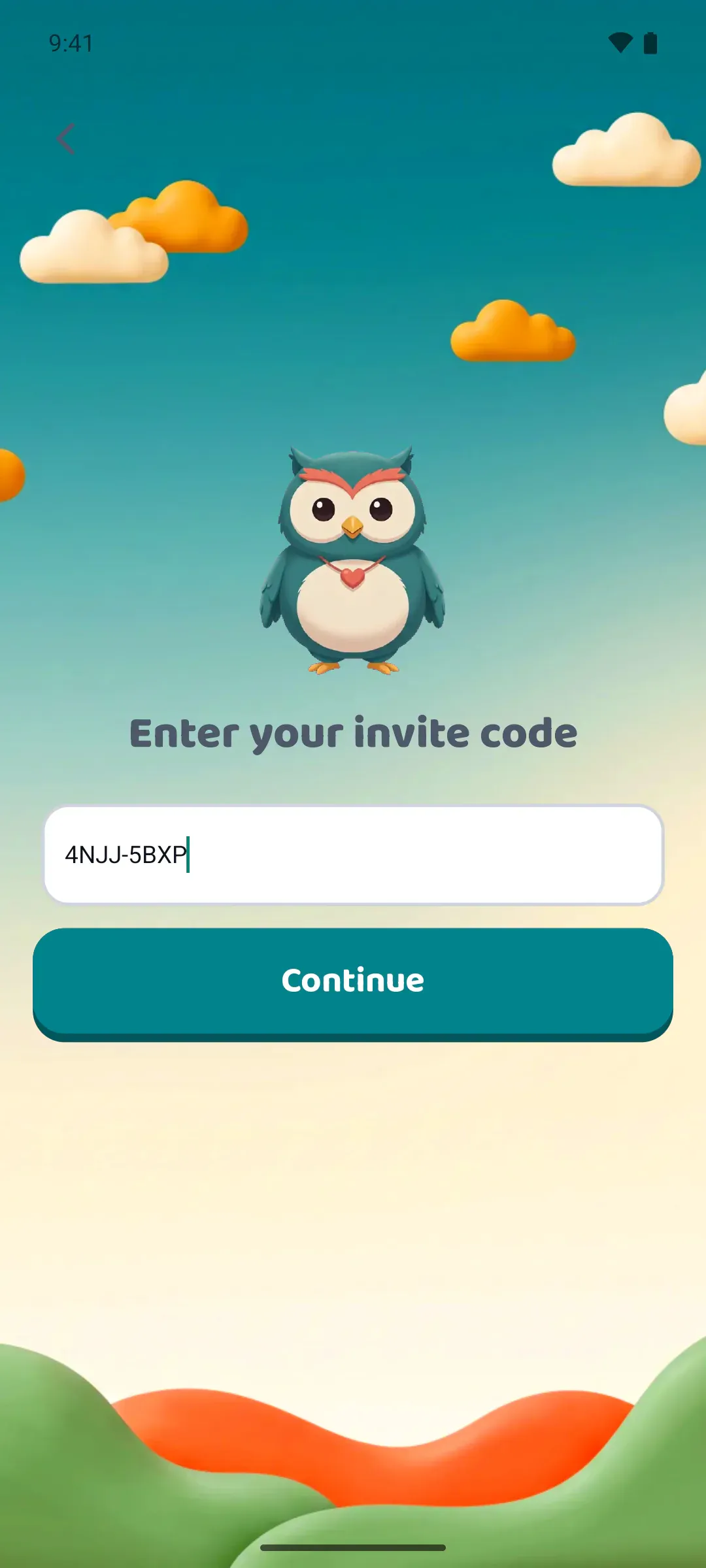
Now the family's side. In the HootCare app, the parent taps Sign up, then Parent. They enter the code you shared, and see whose practice space they're joining. Next, their email, and their name. They agree to the terms and tap Send me a link. We email them a link to sign in. No password needed. A few quick setup questions follow, like whether to share practice clips with you, and they're ready to practice.
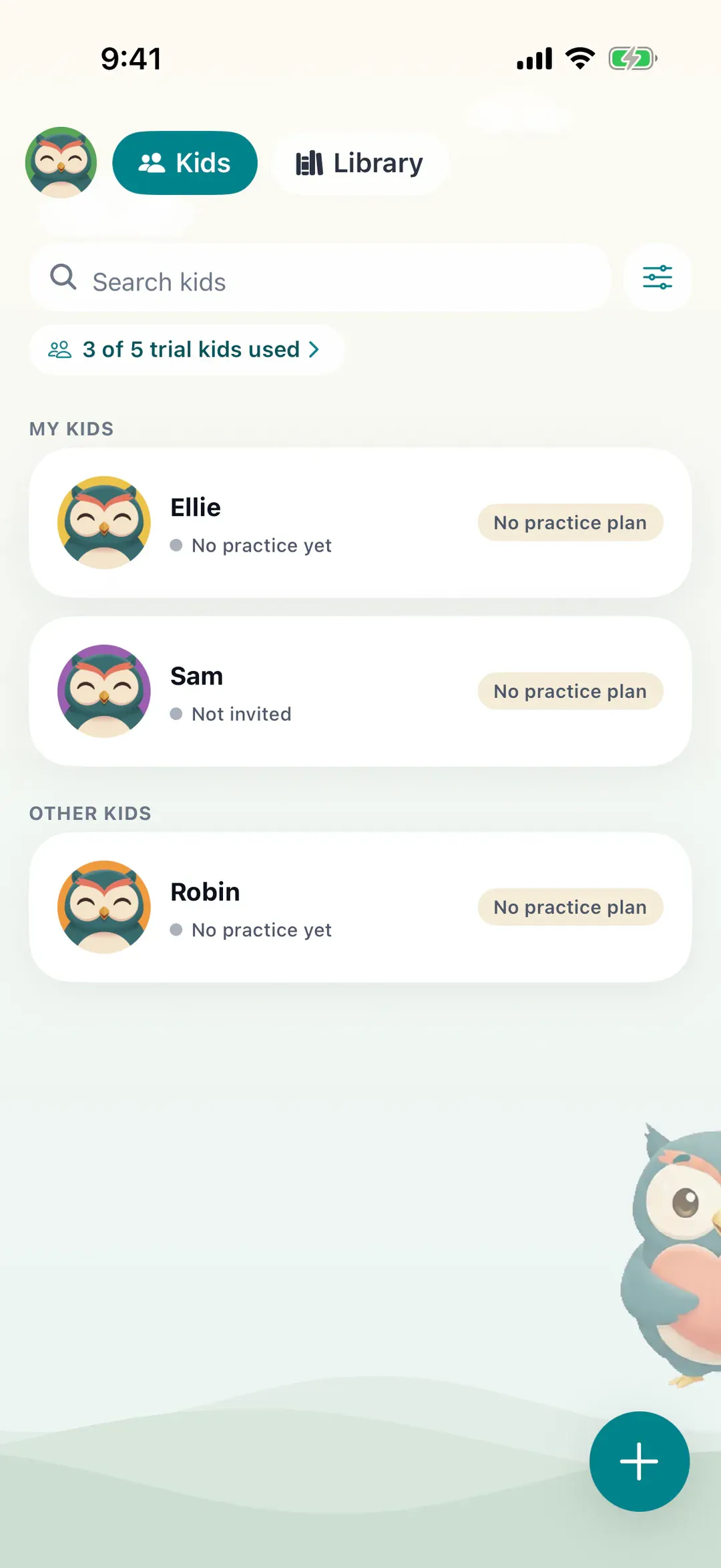
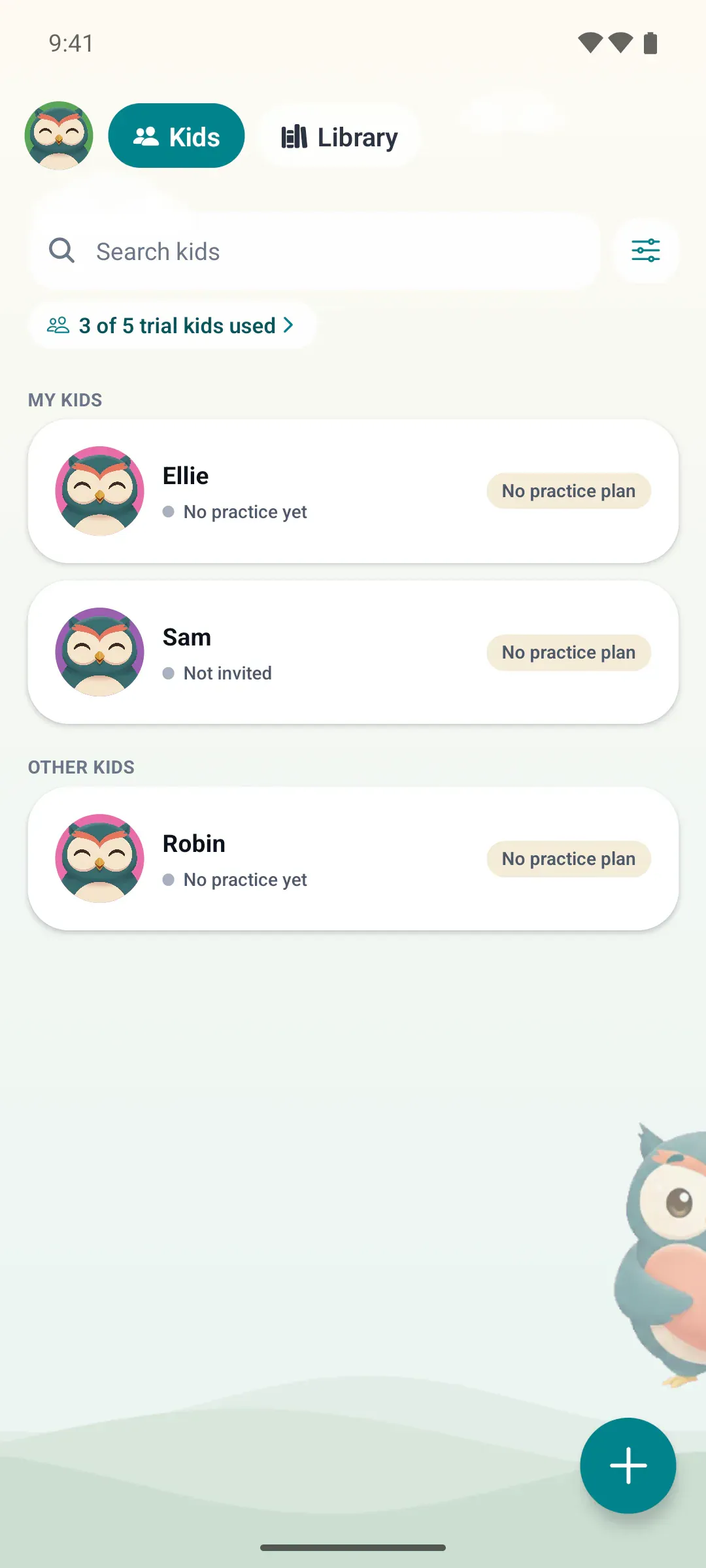
Back on your Kids tab, the kid's row swaps the invite status for a practice status, like No practice yet.
That's all it takes. Next, set up their practice plan.
-
Add the kid
Open Kids and tap the round add button at the bottom right. Type the kid’s first name, then tap Add kid & get code.Open Kids and click Add a kid. Type the kid’s first name, then click Add kid & get code. The rest can wait.
-
Share the invite code
The Share the invite code sheet shows the code. Tap Share to send it in a text or email, or tap Copy and paste it yourself.The Share the invite code window shows the code. Click Copy message, then paste it into a text or email. The code works for 7 days.
-
The family signs up
In the HootCare app, the parent taps Sign up, then Parent, and enters the code. They add their email and name, tap Send me a link, and open the link we email them. No password needed.

-
They’re in
When they join, the kid’s row on Kids swaps the invite status for a practice status, like “No practice yet”.


Good to know
Section titled “Good to know”Where do I find the invite code again?
On Kids, tap Share code on the kid’s row.On Kids, click Share code on the kid’s row to copy the invite message, then paste it into a text or email. The code is also on the kid’s About tab. It works for 7 days.


Can two parents join?
Yes.
On Kids, tap the kid’s name. Open Kids and click the kid’s name.Open the About tab and add a second guardian. Or the first parent can invite a co-parent.
Do families pay?
No. HootCare is free for families.